

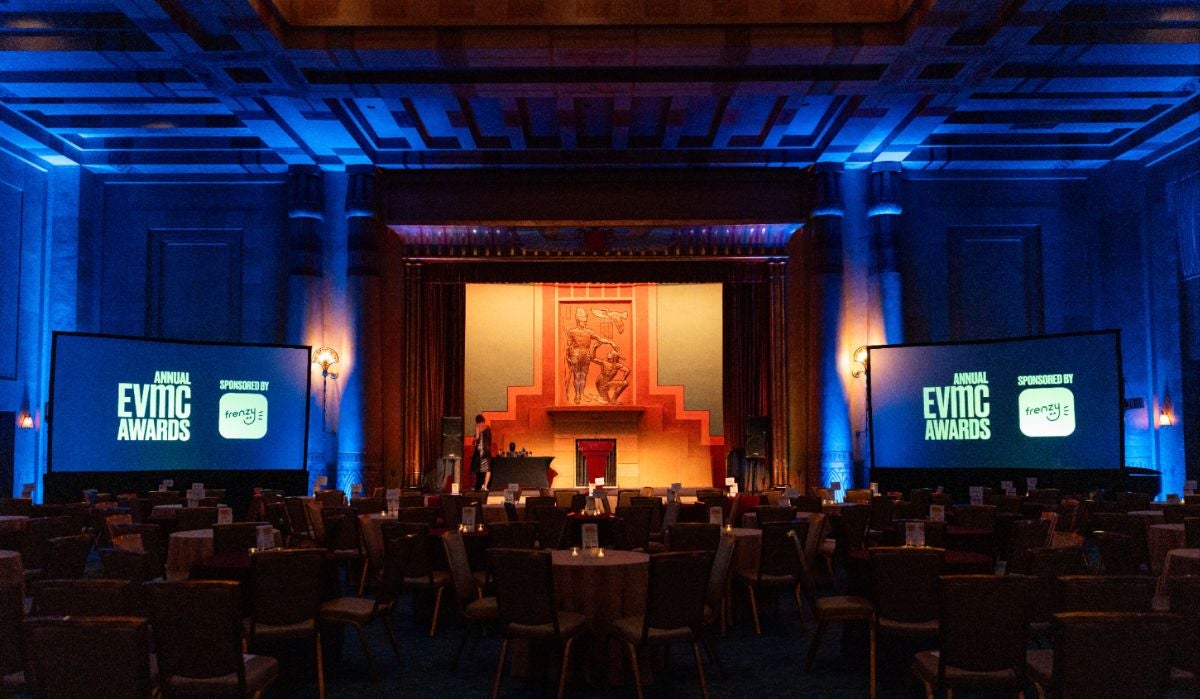

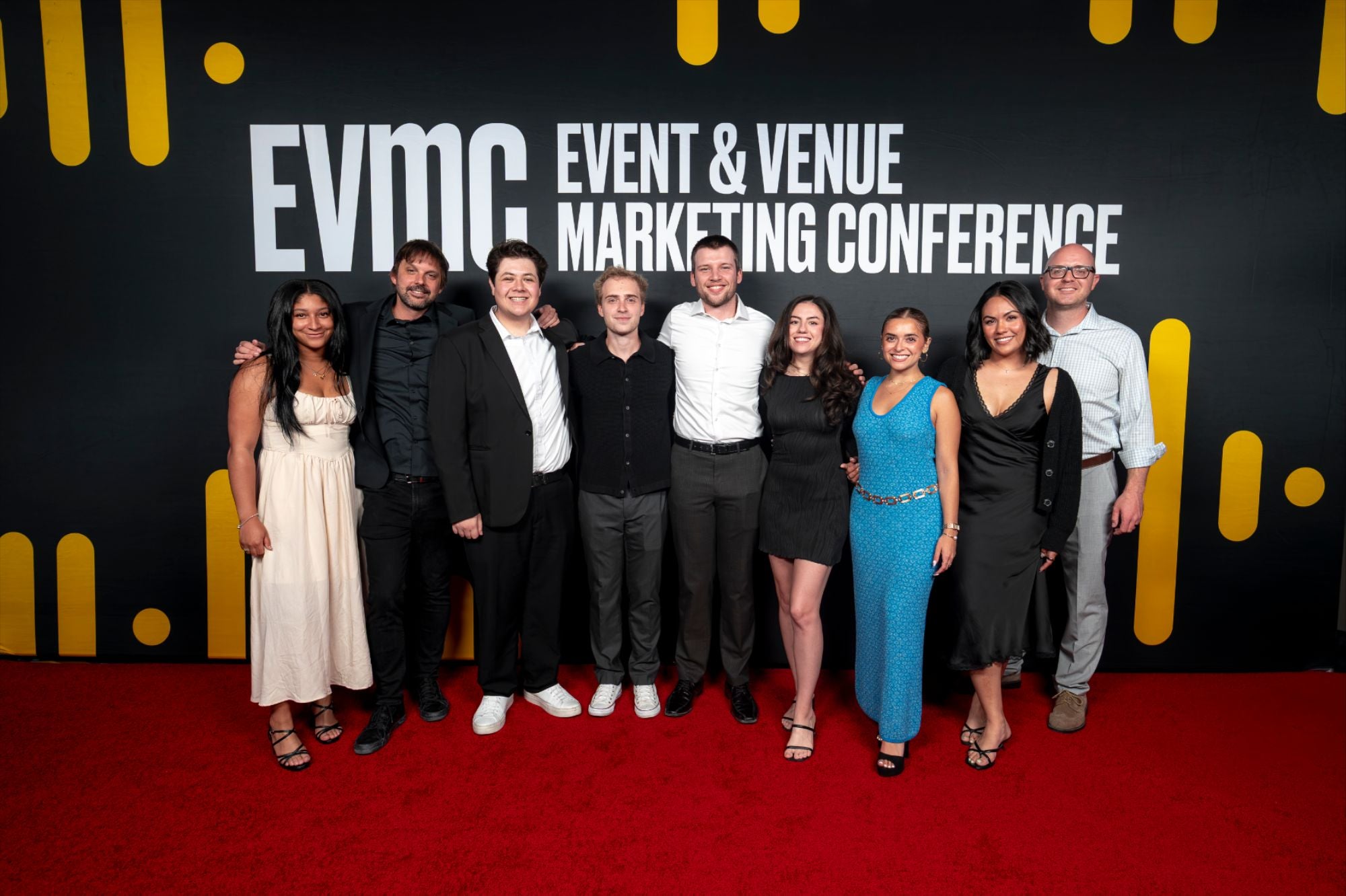
EVMC recognizes the most innovative and strategic professionals in the live entertainment industry each year. Categories include Marketing & Publicity Campaign Of The Year, Most Creative Artist Welcome, and Most Creative Artist Gift.
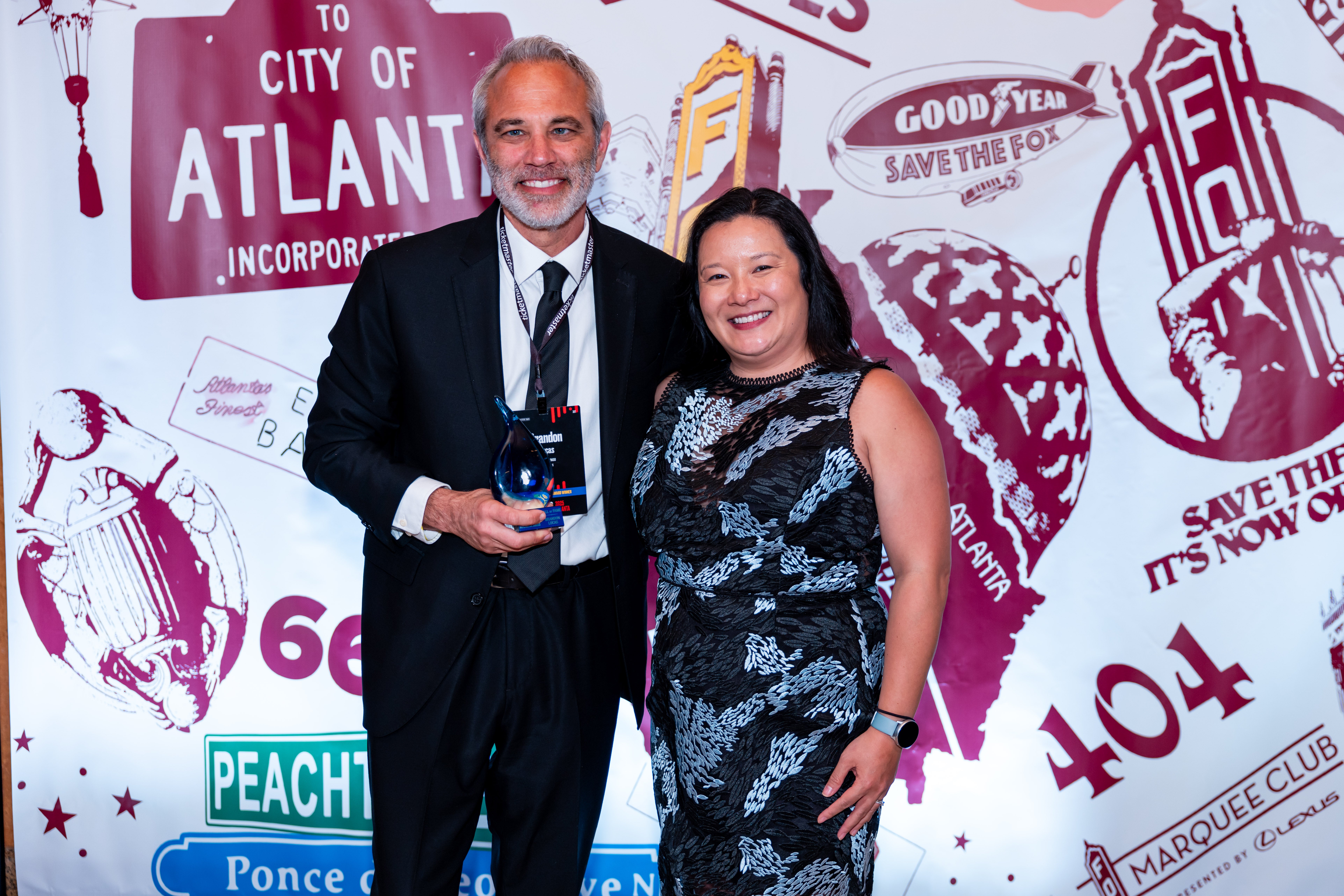
EVMC Hall of Fame was created to honor those individuals who impact the live entertainment industry, support the EVMC conference, and influence marketing trends dating back to 2004.
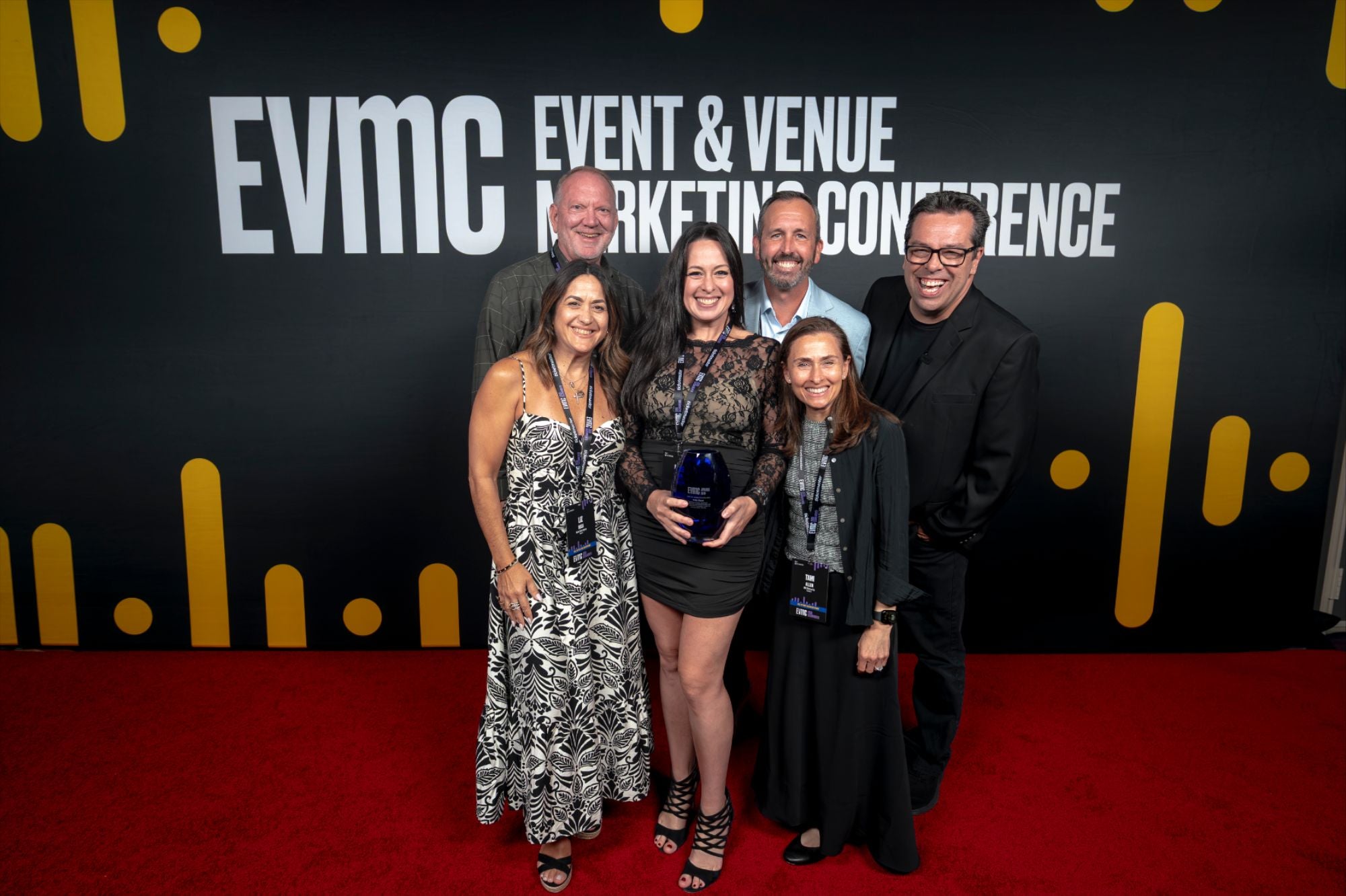
The Gigi Award was created in 1999 to honor a former or current marketing professional for significant contributions made to professionalize and educate the live entertainment industry with substantial involvement in the conference. The award was named after Gigi Pilhofer, who became the first recipient of the annual honor in 2000.

The Impact Award was established to recognize an individual and/or organization that is making a change for good in their community or within the entertainment industry. Whether it is fighting for social justice, feeding the hungry, helping the disabled, influencing a diverse hiring process, or supporting a great cause, we all need to make an impact.